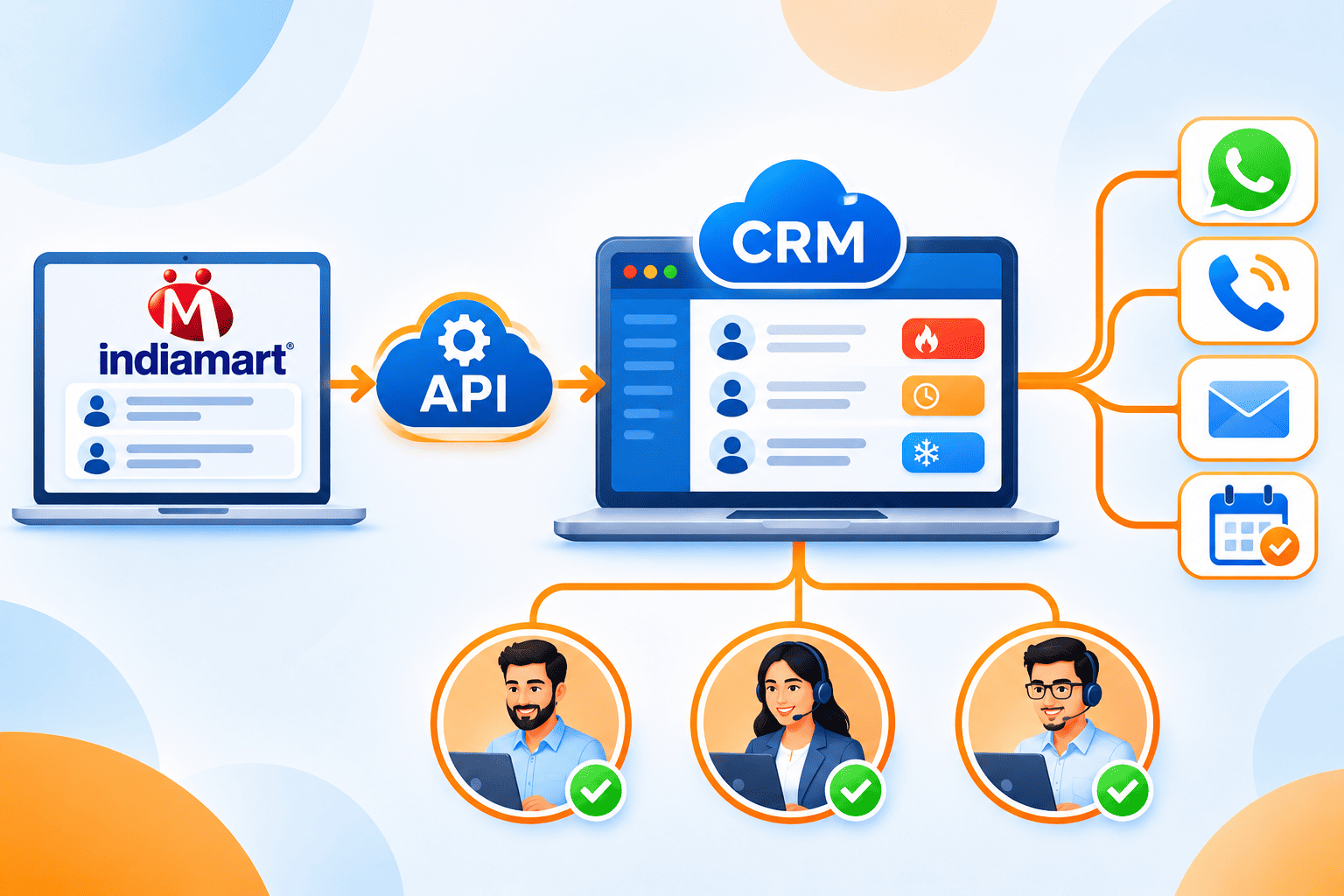
If you sell B2B in India, IndiaMART is probably one of your busiest lead sources. Inquiries arrive in the Lead Manager at all hours, and someone in the office downloads a sheet at the end of the week, pastes it into Excel and shares it on a WhatsApp group. By the time a salesperson calls, the buyer has already spoken to three other suppliers. The IndiaMART leads API fixes this by sending inquiries straight into your sales CRM, automatically and continuously. This guide explains how the API works, the difference between Pull and Push, and why it beats CSV exports if you care about zero lead leakage.
Table of contents
- What the IndiaMART leads API is
- Pull API vs Push API
- Why the API beats CSV exports
- How to connect the IndiaMART leads API to your CRM
- What to do with leads once they land
- How Wetroo helps
- FAQs
- Conclusion
What the IndiaMART leads API is
IndiaMART describes its LMS Leads API as a service for clients who use external CRM platforms, allowing inquiries to be fetched and delivered directly into that CRM (IndiaMART Help). Instead of logging into seller.indiamart.com to view or export inquiries, your CRM receives the buyer's name, phone number, company, product of interest, message and other fields in a structured format.
According to IndiaMART's help pages at the time of writing, API integration is available to paid sellers, and the Pull API is offered in a do-it-yourself mode, meaning you or your CRM provider handle the technical setup (IndiaMART Help: Pull API integration). In practice, most SMBs use a CRM that already supports the connection, so the "DIY" part is just pasting a key.
Pull API vs Push API
IndiaMART offers two mechanisms. Understanding them helps you ask the right questions of any CRM vendor.
| Pull API | Push API |
|---|---|
| How it works | Your CRM requests new leads at regular intervals |
| Key setup | Generate a Pull API key in Lead Manager |
| Historical data | Can fetch past leads within date ranges |
| Best for | Most CRMs, backfilling older leads |
A few practical details from IndiaMART's documentation at the time of writing:
- The Pull API key is generated from Lead Manager under Import/Export Leads, or from the CRM API key page.
- A key that is not used for seven days expires, and generating a new key invalidates the old one. If your integration suddenly stops, an expired key is the first thing to check.
- Date-range requests are limited (IndiaMART mentions a maximum of seven days per request), and calls without dates return new leads since the last call.
- IndiaMART recommends sensible polling intervals rather than hammering the API.
Your CRM should take care of these limits for you, but knowing them helps you troubleshoot.
Why the API beats CSV exports
Manual exports feel safe because you can see the file. In reality, they create leakage at every step.
Delay kills B2B inquiries
Buyers on IndiaMART often send the same requirement to several suppliers. The first credible response gets the conversation. A weekly or even daily export means your team is calling hours or days late. Our post on lead leakage explains how small delays quietly cut conversion.
Exports lose context and ownership
A spreadsheet does not assign anyone. Leads get split informally, some are called twice, some never. There is no record of who spoke to whom, and no reminder for the second follow-up.
Duplicates and typos
Copy-pasting creates duplicate rows, broken phone numbers and missing product names. An API connection pulls structured fields every time.
No audit trail
When a big buyer says "nobody called me", a spreadsheet cannot prove otherwise. A CRM timeline can.
How to connect the IndiaMART leads API to your CRM
The exact screens differ by CRM, but the flow is similar:
- Confirm eligibility. Check that your IndiaMART account has API access as per your seller plan.
- Generate the key. Log in to seller.indiamart.com, open Lead Manager, go to Import/Export Leads and choose the Pull API option. Copy the key.
- Paste it into your CRM. In your CRM's IndiaMART integration, add the key and choose a sync frequency if offered.
- Map fields. Map buyer name, mobile, email, company, city, product and message to CRM fields. Add a "Source = IndiaMART" tag.
- Set assignment rules. Decide who gets IndiaMART leads, by product line, city or round robin.
- Test. Send a test inquiry or wait for the next real one, and confirm it appears with the right owner.
- Monitor. Keep the integration active so the key does not expire from inactivity.
For a broader look at connection options, see our guide on IndiaMART CRM integration.
Hypothetical example
This is a hypothetical example, not a real customer. "Patel Industrial Valves", a manufacturer in Ahmedabad, receives IndiaMART inquiries for ball valves, gate valves and custom fittings. Earlier, the office manager exported leads every evening. After connecting the IndiaMART leads API to its CRM, each inquiry lands within minutes, tagged by product. Ball-valve inquiries go to one salesperson and custom fittings to the technical sales head. Each new lead triggers an app alert and a WhatsApp introduction with the company catalogue. Managers can now see which product lines generate inquiries and how quickly each salesperson responds.
What to do with leads once they land
Connecting the API is step one. The value comes from what happens in the next hour.
IndiaMART lead handling checklist
- Instant alert to the assigned salesperson's phone
- First response within minutes, by call or WhatsApp
- A ready reply template for common product inquiries
- Qualification questions: quantity, delivery location, timeline, GST details
- Follow-up reminders at fixed intervals if there is no reply
- Quotation sent and tracked from the CRM
- Lost reasons recorded (price, specification, timeline)
Need wording for the first message? Our IndiaMART inquiry reply templates give you ready-to-use options.
How Wetroo helps
Wetroo lists IndiaMART among its lead capture sources, alongside Facebook Ads, Instagram, Google Ads lead forms and WordPress forms, with 100+ integrations and webhooks. Once IndiaMART inquiries are flowing in, Wetroo helps your team act on them:
- Instant lead alerts on the Wetroo app and by email, with a tap to see the buyer's contact details.
- One-touch Quick Response introductions over WhatsApp, SMS or email.
- Teams, sub-teams and custom assignment rules to route inquiries by product or region, and an analytics dashboard to track performance.
- Sales sequences and drip campaigns for buyers who do not reply immediately, plus invoices and quotations from the same platform.
- AI agents that can call or chat to qualify leads 24/7, with live transfer to a human when the buyer is ready.
Wetroo also offers data migration and an implementation manager on every plan, which helps if you have older IndiaMART leads sitting in spreadsheets.
FAQs
Is the IndiaMART leads API free?
IndiaMART's help pages describe API integration as available to paid sellers. Check your current IndiaMART plan or contact IndiaMART to confirm access.
Why did my IndiaMART integration stop working?
A common cause is the Pull API key expiring after a period of non-use, or a new key being generated, which disables the old one. Regenerate the key and update it in your CRM.
Can I import old IndiaMART leads into my CRM?
The Pull API supports fetching historical leads by date range, within IndiaMART's limits. Your CRM may also accept a one-time import.
What is the difference between IndiaMART Pull and Push API?
Pull means your CRM requests new leads at intervals; Push means IndiaMART sends leads to your CRM's endpoint as they arrive.
Conclusion
The IndiaMART leads API turns a slow, spreadsheet-driven process into a live pipeline. Inquiries reach the right salesperson within minutes, nothing is lost between exports, and every interaction is recorded. Connect the API, set clear assignment rules and pair it with fast first responses, and your IndiaMART spend starts paying back properly. To see how Wetroo connects IndiaMART and your other lead sources in one place, visit www.wetroo.com.