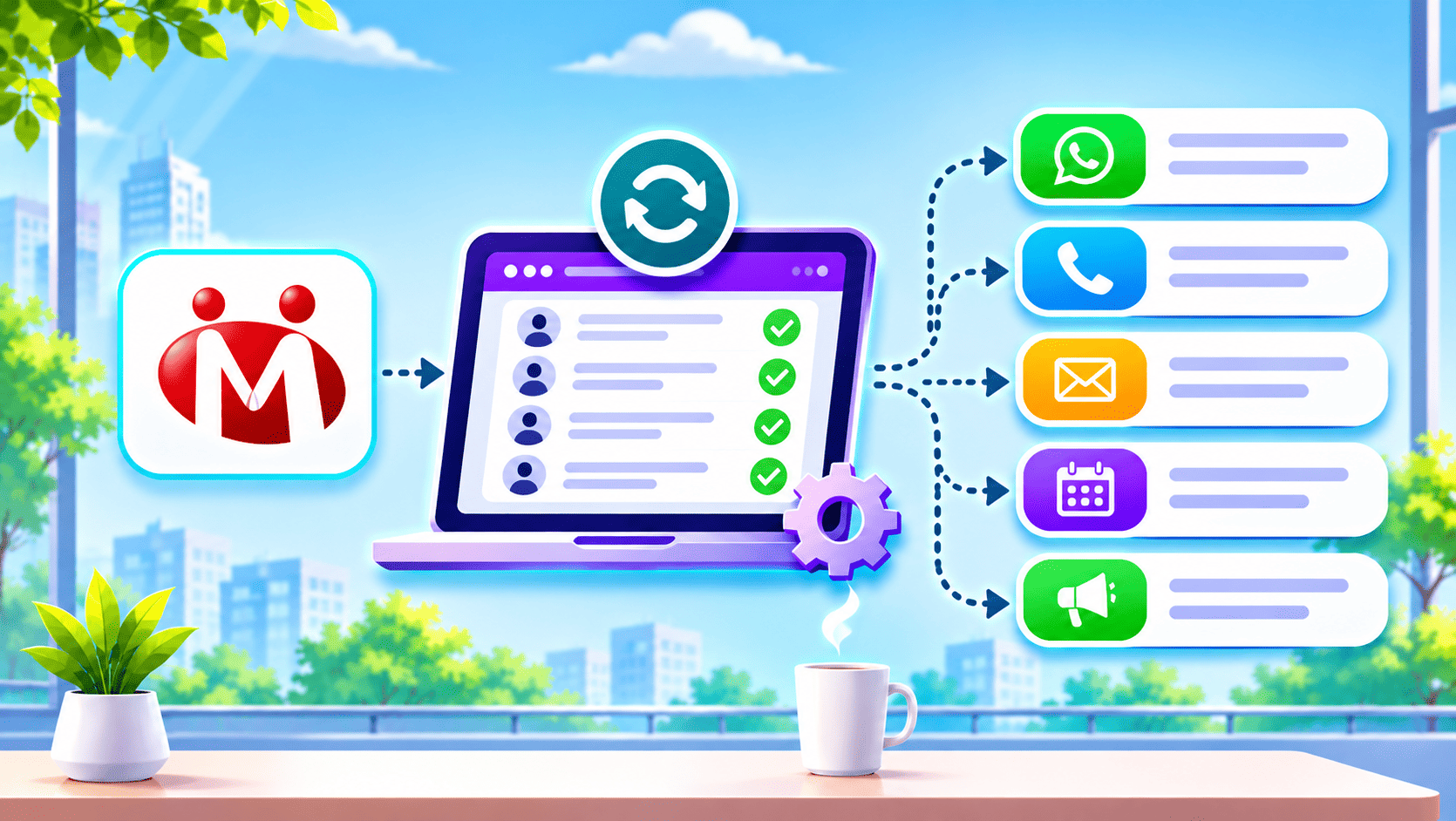
For many Indian manufacturers, traders and service providers, IndiaMART is the single biggest source of B2B enquiries. Yet a surprising number of sellers still manage those enquiries by logging into the seller panel, reading buy leads and copying details into a spreadsheet or WhatsApp. That works until volume grows, then enquiries get missed, replies slow down and nobody knows which leads turned into orders. IndiaMART CRM integration solves this by moving every enquiry into your CRM automatically, where it can be assigned, answered and tracked.
There is more than one way to do it, though, and the options differ a lot in reliability and effort. This guide compares them, from manual exports and spreadsheet workarounds to IndiaMART's official Push and Pull APIs and native CRM connectors, so you can choose the right path.
Table of contents
- Why integrate IndiaMART with your CRM?
- Five IndiaMART CRM integration options
- Option 1: Manual exports and copying
- Option 2 and 3: Email parsing, sheets and Zapier-style hacks
- Option 4: IndiaMART's official Push and Pull APIs
- Option 5: Native CRM connectors
- What to do once leads are flowing
- Hypothetical example
- How Wetroo helps
- FAQs
- Conclusion
Why integrate IndiaMART with your CRM?
- Speed: buyers often contact several suppliers; integrated leads can trigger instant alerts and replies.
- No missed enquiries: every lead is captured, even when the team is busy.
- One pipeline: IndiaMART leads sit alongside website, Facebook and Google leads.
- Accountability: each lead has an owner and a history.
- Measurement: you can see which IndiaMART categories and products actually produce orders.
Five IndiaMART CRM integration options
| Option | How it works | Reliability | Effort | Best for |
|---|---|---|---|---|
| 1. Manual export/copy | Download or copy from Lead Manager | Low (depends on people) | High, ongoing | Very low volume |
| 2. Email parsing | Parse enquiry notification emails | Medium (format changes break it) | Medium | Stop-gap |
| 3. Sheets + automation tools | Connect leads into Google Sheets, then onward via Zapier-style tools | Medium | Medium to set up, fragile | Teams experimenting |
| 4. Official IndiaMART APIs (Push/Pull) | IndiaMART sends or provides leads to your CRM | High | Low once configured | Most growing sellers |
| 5. Native CRM connector | CRM handles the API connection for you | High | Lowest | Sellers who want plug-and-play |
Option 1: Manual exports and copying
The simplest approach: someone checks the seller panel and enters leads into a sheet or CRM.
Pros: no setup. Cons: slow, error-prone, and stops whenever that person is busy or on leave. Response times suffer because the lead only "exists" for your team after someone copies it.
Option 2 and 3: Email parsing, sheets and Zapier-style hacks
Some sellers parse IndiaMART notification emails into a spreadsheet, or use generic automation tools to move data from a sheet into a CRM or WhatsApp.
Pros: better than manual copying; can be set up without developers. Cons:
- Fragile: email formats or sheet structures change and the automation silently stops.
- Delays: polling intervals add minutes or hours.
- Multiple tools to pay for and maintain.
- Data gaps: fields may be missed or mis-mapped.
These hacks can be useful as a temporary bridge, but they are rarely the best long-term choice when official options exist.
Option 4: IndiaMART's official Push and Pull APIs
IndiaMART documents two official ways to get Lead Manager data into third-party CRMs.
Push API (real-time)
According to IndiaMART's help centre, the Lead Manager CRM Push API sends leads in real time to your CRM's webhook listener URL. In the seller panel, you go to Lead Manager → Import/Export Leads → Push, select your CRM from the list (or choose "Other" and enter the platform name and webhook URL), and activate it after confirming an OTP on your primary mobile number (IndiaMART Help: Push API).
Why it matters: leads reach your CRM as soon as they are generated, which enables instant alerts and replies.
Pull API (scheduled fetch)
IndiaMART's Pull API provides lead details in JSON format for a CRM to fetch. IndiaMART's documentation states it is available to paid sellers, is offered in do-it-yourself mode, and has usage rules, including a maximum seven-day window per request, a minimum five-minute gap between calls and key expiry if unused for seven days (IndiaMART Help: Pull API).
Why it matters: useful for CRMs that fetch on a schedule, but less immediate than Push, and the rules must be respected to avoid errors or temporary blocks.
IndiaMART has also noted that some older pull-based plugins are being phased out in favour of push-based integration, so check the current guidance on its help centre.
Option 5: Native CRM connectors
Many CRMs offer an IndiaMART connector that uses the official APIs behind the scenes. You typically:
- Open the IndiaMART integration in your CRM.
- Copy the webhook URL or key the CRM provides.
- Paste it into the IndiaMART seller panel (Push API) or enter your IndiaMART key in the CRM (Pull API).
- Map fields such as product, quantity, city and message.
- Test with a sample lead.
Pros: lowest effort, maintained by the CRM vendor, leads appear with source tags automatically.
What to do once leads are flowing
Integration is only the first step. Make the most of it:
- Instant alert and owner: assign IndiaMART leads by product or territory.
- Instant reply: send a professional WhatsApp or email asking for quantity, specifications and delivery location.
- Quote from templates: generate quotations inside the CRM.
- Follow-up cadence: run a short sequence until the buyer replies.
- Lost reasons: record why deals are lost to improve future replies.
- Measure by category: see which IndiaMART products bring real orders.
Handling duplicates and repeat buyers
IndiaMART buyers sometimes enquire about several products, or return weeks later with a new requirement. Decide in advance how your CRM should treat these:
- Same buyer, same product, within a few days: merge into the existing lead and alert its owner rather than creating a new one.
- Same buyer, different product: create a new opportunity but keep it linked to the same contact, so the salesperson sees the full history.
- Past customer enquiring again: route to the salesperson who handled the earlier order; a familiar voice often wins repeat business.
Clear duplicate rules prevent two salespeople from quoting the same buyer different prices, which is one of the fastest ways to lose credibility in B2B.
IndiaMART integration checklist
- Integration method chosen (Push preferred for speed)
- Webhook or key configured and tested
- Fields mapped (product, quantity, city, message)
- Assignment rules for IndiaMART leads
- Instant reply template ready
- Follow-up sequence configured
- Weekly report on IndiaMART leads to orders
Hypothetical example
This is a hypothetical example for illustration, not a real customer.
A hydraulic equipment supplier in Faridabad receives IndiaMART enquiries throughout the day. For a year, a coordinator used a spreadsheet fed by email notifications; the parser broke twice after format changes, and nobody noticed for days. The company switches to its CRM's IndiaMART connector using the Push API. Leads now appear within moments, are assigned by product line, and trigger an automatic WhatsApp reply asking for model, quantity and delivery city. The sales manager reviews IndiaMART enquiries-to-orders by product each month.
How Wetroo helps
Wetroo lists IndiaMART among its directly connected lead sources. Verified features include:
- IndiaMART lead capture alongside Facebook Ads, Instagram, Google Ads forms and WordPress forms; webhooks and 100+ integrations.
- Instant lead alerts and one-touch Quick Response on WhatsApp, SMS or email.
- Teams and custom assignment rules by product or territory.
- Sales sequences and drip campaigns on the official WhatsApp Business API.
- Invoices and quotations inside the CRM.
- Implementation manager and team training on every plan.
FAQs
How do I integrate IndiaMART with my CRM?
Use IndiaMART's official Push API (real-time) or Pull API, ideally through your CRM's native IndiaMART connector, then map fields and test with a sample lead.
What is the difference between IndiaMART Push API and Pull API?
Push sends leads to your CRM's webhook in real time. Pull lets your CRM fetch leads in JSON on a schedule, subject to IndiaMART's usage rules.
Can I connect IndiaMART to Google Sheets?
Some sellers use sheets and automation tools as a workaround, but these can be fragile. Official APIs or native connectors are more reliable.
Do I need a paid IndiaMART plan for API access?
IndiaMART's Pull API documentation states it is for paid sellers. Check IndiaMART's help centre or your account manager for current eligibility.
Conclusion
The best IndiaMART CRM integration is the one that delivers every enquiry to your team in real time with no manual steps. For most growing sellers, that means IndiaMART's official Push API through a native CRM connector, followed by instant replies, clear ownership and consistent follow-up.
To bring IndiaMART leads into one pipeline with WhatsApp automation, explore Wetroo at www.wetroo.com.